




Redesigning UChicago Safe.
2026.5.9: What I'd change now
Looking at it again, a few things stand out:
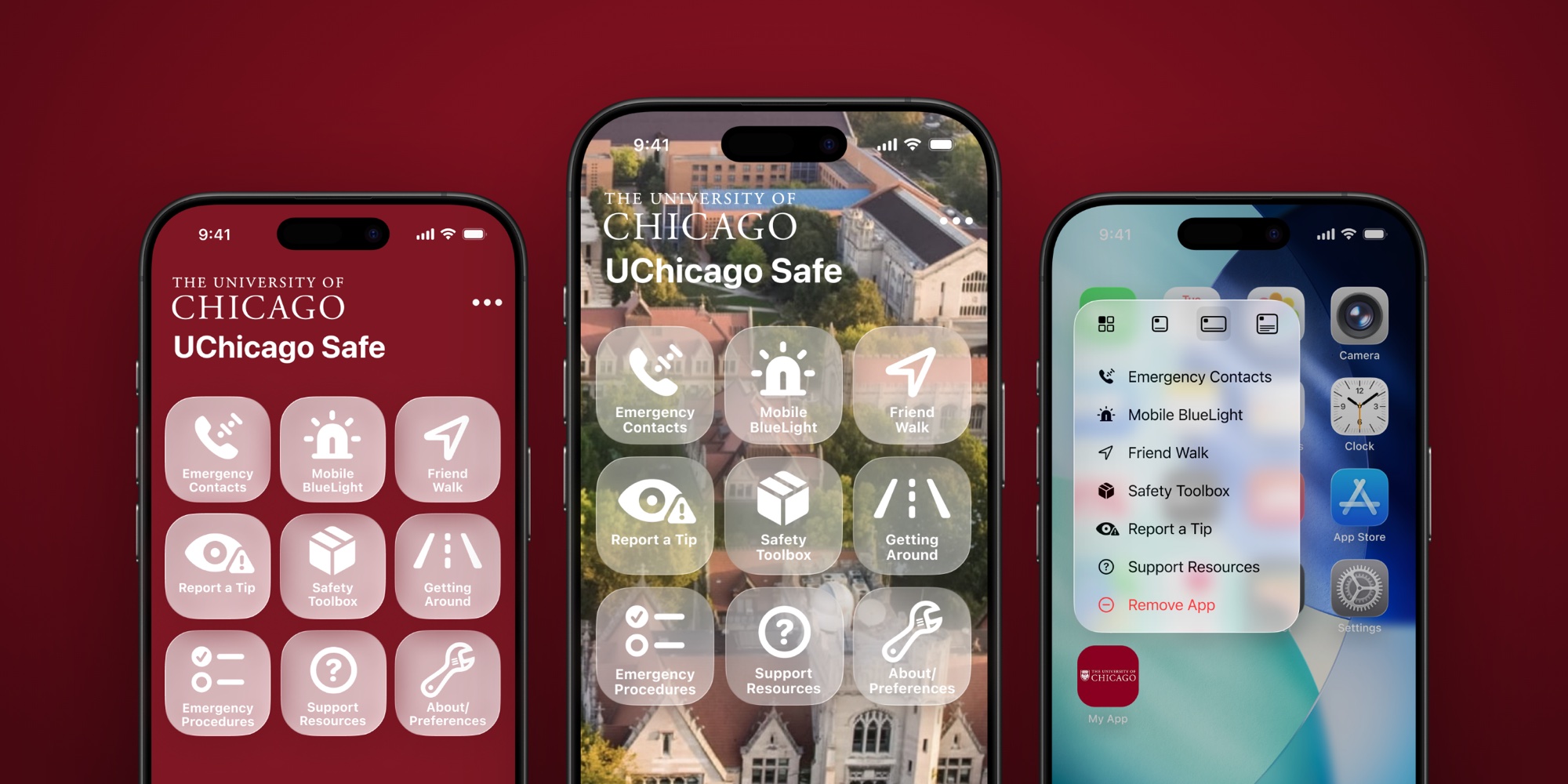
White labels on frosted glass over a busy photo can drop below a comfortable contrast ratio, especially in bright sunlight. The photo version needs a darker scrim behind the grid.
The tiles should be tested with Dynamic Type at the largest sizes, where two-line labels like "Emergency Procedures" will run out of room.
Every tile needs a clear VoiceOver label and order, because the person who needs this app most might not be looking at the screen.
Most of all, it should be tested with students. My rule about one tap is a guess until someone uses it at 1 a.m. on the walk back from the library.
I redesigned UChicago Safe, the University of Chicago's campus safety app. It's the app students use to reach campus police, share their location with a friend on the walk home, or send an anonymous tip. Here's how I approached it.
Designing for the worst moment
Most apps are designed for moments when people choose to use them. A safety app may sit untouched for months. When someone opens it, they may be scared, in a hurry, or walking in the dark. They won’t stop to read or remember where a feature is.
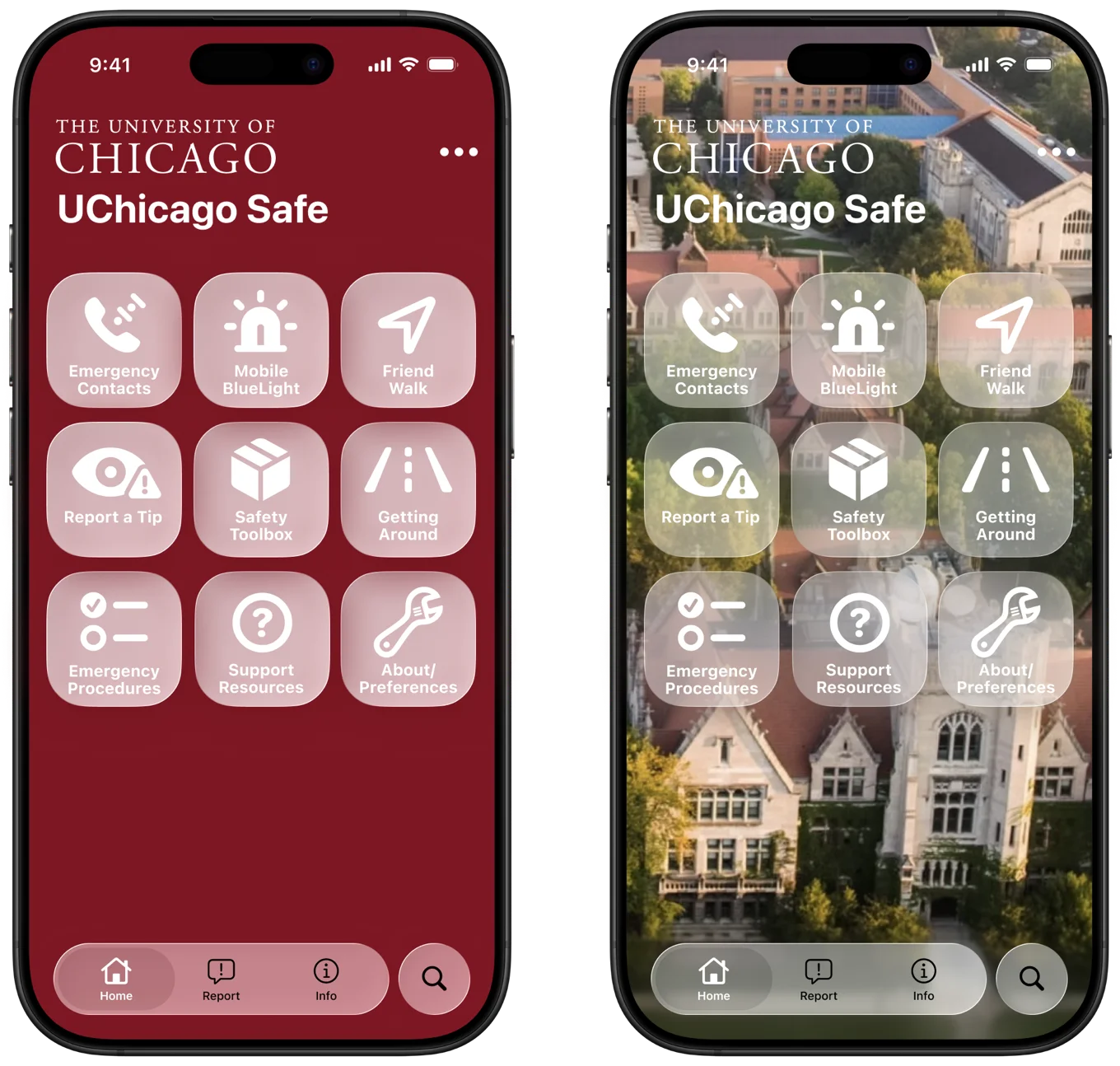
So I set one rule for the home screen: every action must be visible and one tap away. No hamburger menu, no nested settings, nothing hidden behind a swipe.
The home screen is a three-by-three grid of large tiles, each with a bold icon and a plain label.
The top row holds the three things you'd reach for in an emergency: Emergency Contacts, Mobile BlueLight, and Friend Walk. The second row is for reporting and getting around: Report a Tip, Safety Toolbox, and Getting Around. The last row is reference material you read when you're calm: Emergency Procedures, Support Resources, and About.
Reading top to bottom, the screen goes from urgent to informational. A tab bar at the bottom keeps Home, Report, and Info in the same place on every screen, with search on its own.
Two looks
I made two versions of the home screen. One uses a solid UChicago maroon background that feels unmistakably official. The other places frosted-glass tiles over a campus photo, letting the Gothic architecture show through in a style inspired by Apple’s Liquid Glass.
The photo version feels more connected to the campus around you. The solid version is easier to read at a glance.
Help before the app even opens
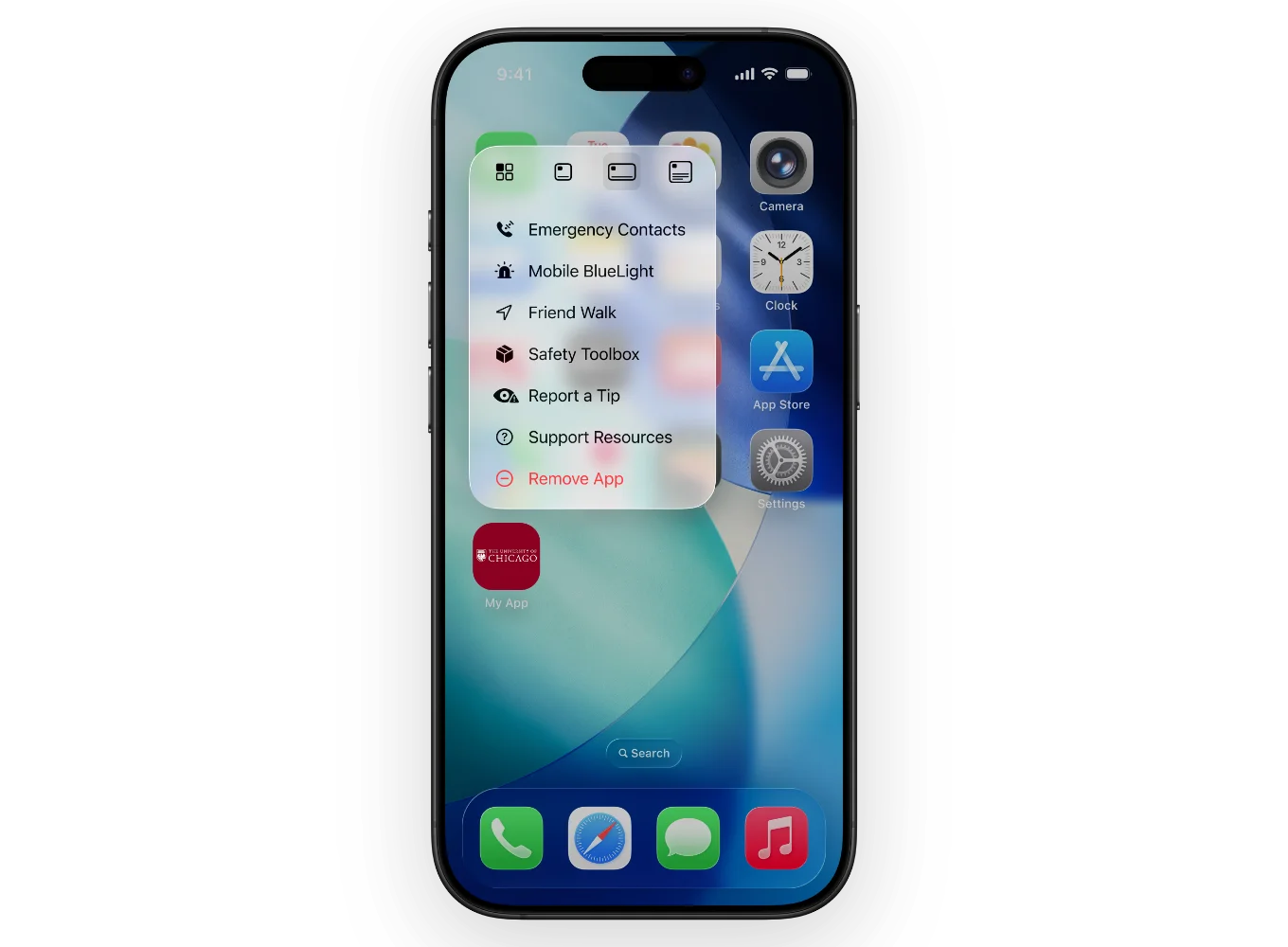
The fastest tap is the one you don't need. I added Home Screen quick actions, so pressing and holding the app icon goes straight to Emergency Contacts, Mobile BlueLight, Friend Walk, or Report a Tip, without waiting for the app to load.
A personal concept project. Not affiliated with or endorsed by the University of Chicago. The University's name and marks belong to the University of Chicago.